Your workspace can feel like a calm control room or a chaotic mess. The difference is usually design, not willpower.
With a few smart changes, your tech will look better, work faster, and feel easier to use every day.
1. Cable-Quiet Layout With Intentional Pathways
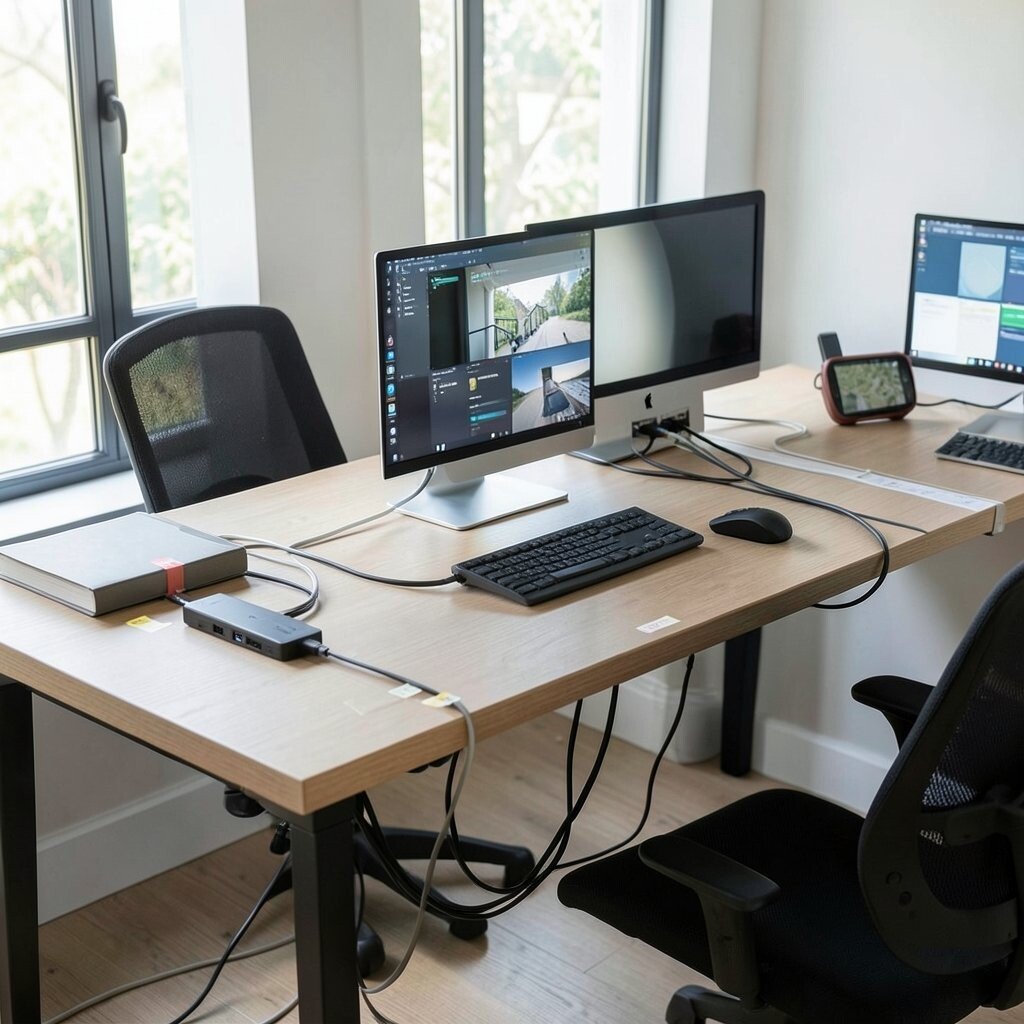
Start by picturing where power, data, and movement happen in your room. When cables have a clear route, your desk looks tidier and your setup feels more dependable.
Try running charging and connectivity lines along the back edge of the desk instead of across the middle. Use a short tray or cable channel so wires stay hidden, and label the ends with small tape so you can swap devices later.
2. Power and Charging Built Into the Desk Surface
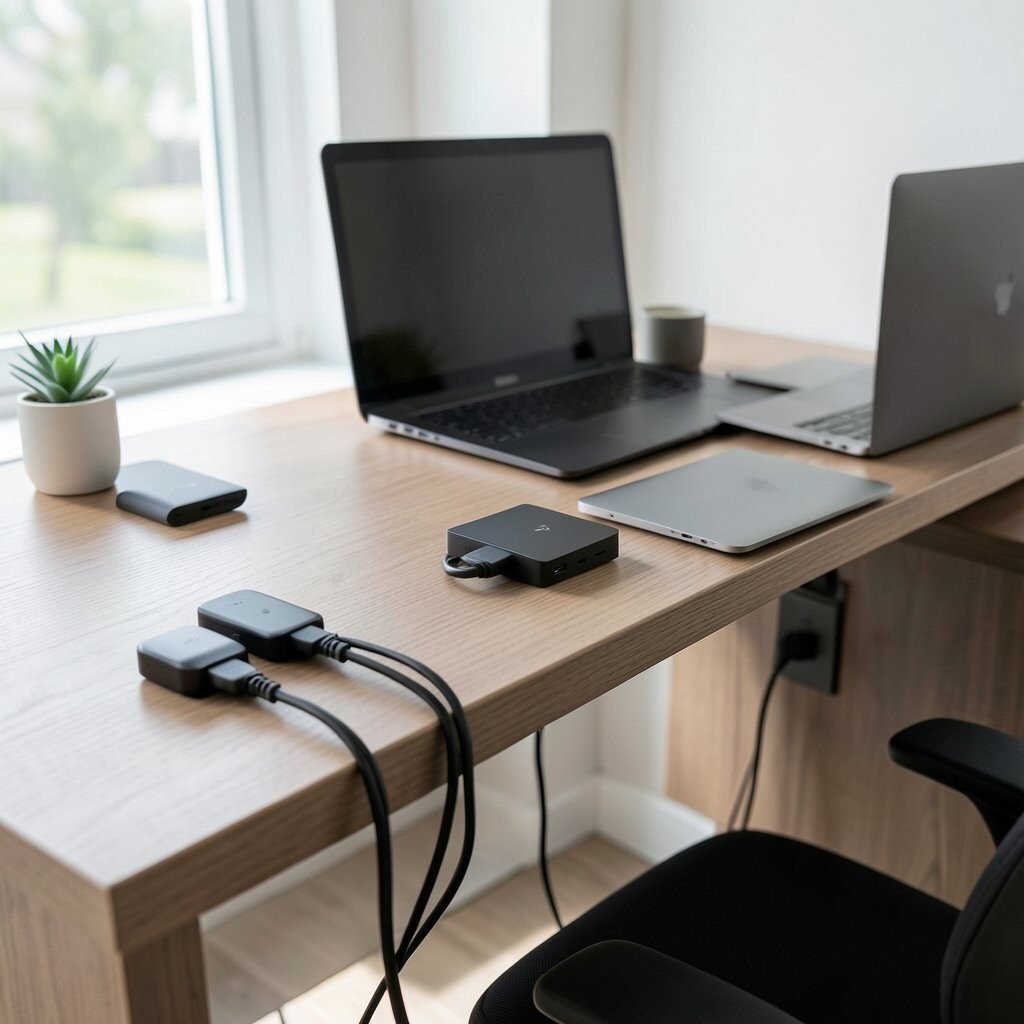
Nothing ruins a smooth workflow like a phone stuck at one stubborn outlet. If charging is built into your desk surface, you can stay focused while devices top up quietly.
Look for desk add-ons like pop-up power modules, under-desk power strips, or modular charging docks. Place a USB-C hub near where you sit, and keep a second outlet available for a laptop charger so cords don’t become tangled.
To personalize, match the port colors or choose a dock that fits your desk finish, like wood tones or matte black. Consider a mid-range solution first, since many built-in style kits are cheaper than custom carpentry.
3. Task Lighting That Works With Your Screen
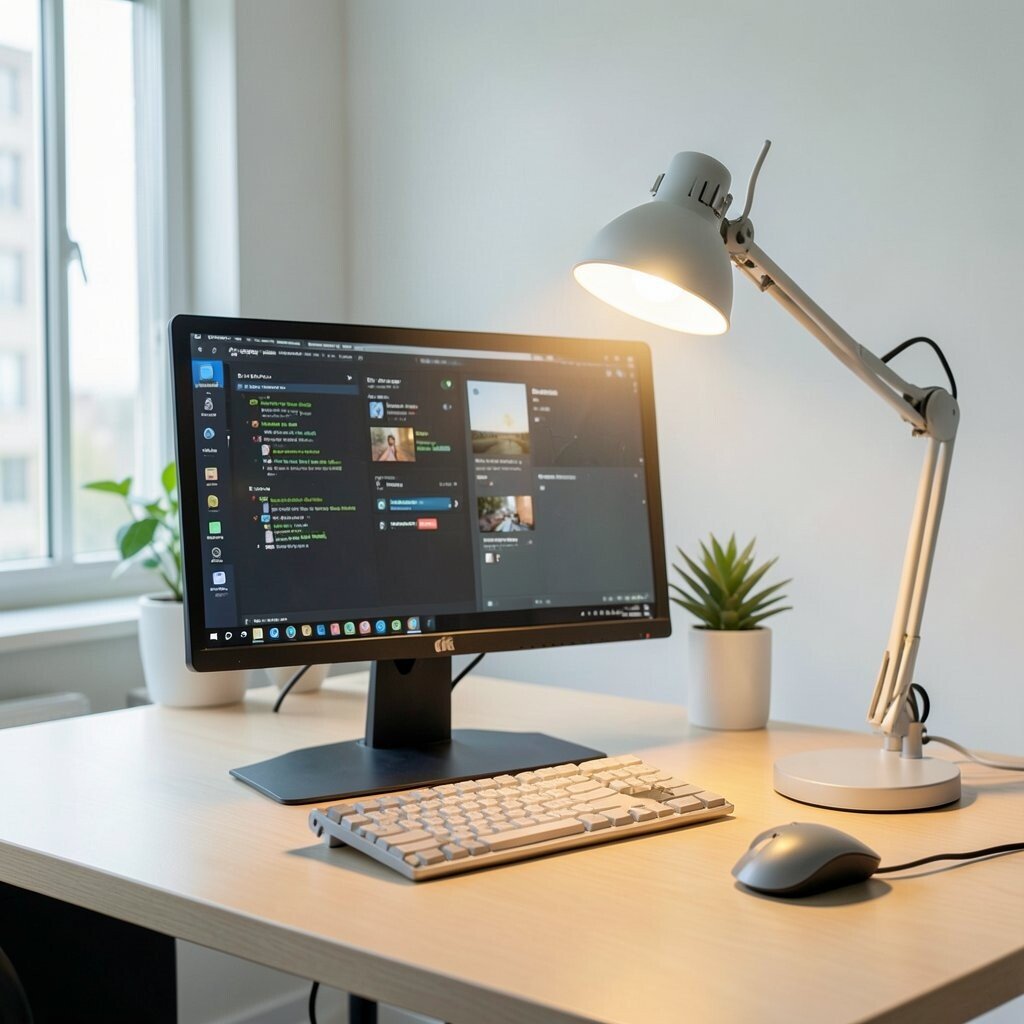
Bright lights can be great, but glare on a monitor makes even good hardware feel frustrating. The right task lighting gives you comfort while keeping your eyes relaxed.
Use a desk lamp with a warm-to-neutral range and aim it so it lights your keyboard area, not the screen. Add a diffuser shade or choose a lamp with adjustable arms so you can aim it during mornings and evenings.
If you wear glasses or work with reading apps, place the light slightly to the side to reduce reflections. It’s a practical upgrade that doesn’t require major changes and usually fits most budgets.
For a modern trend, many people now choose dimmable LED bulbs and smart lighting that syncs with their routines.
4. Monitor Stand Height for Better Posture and Less Strain
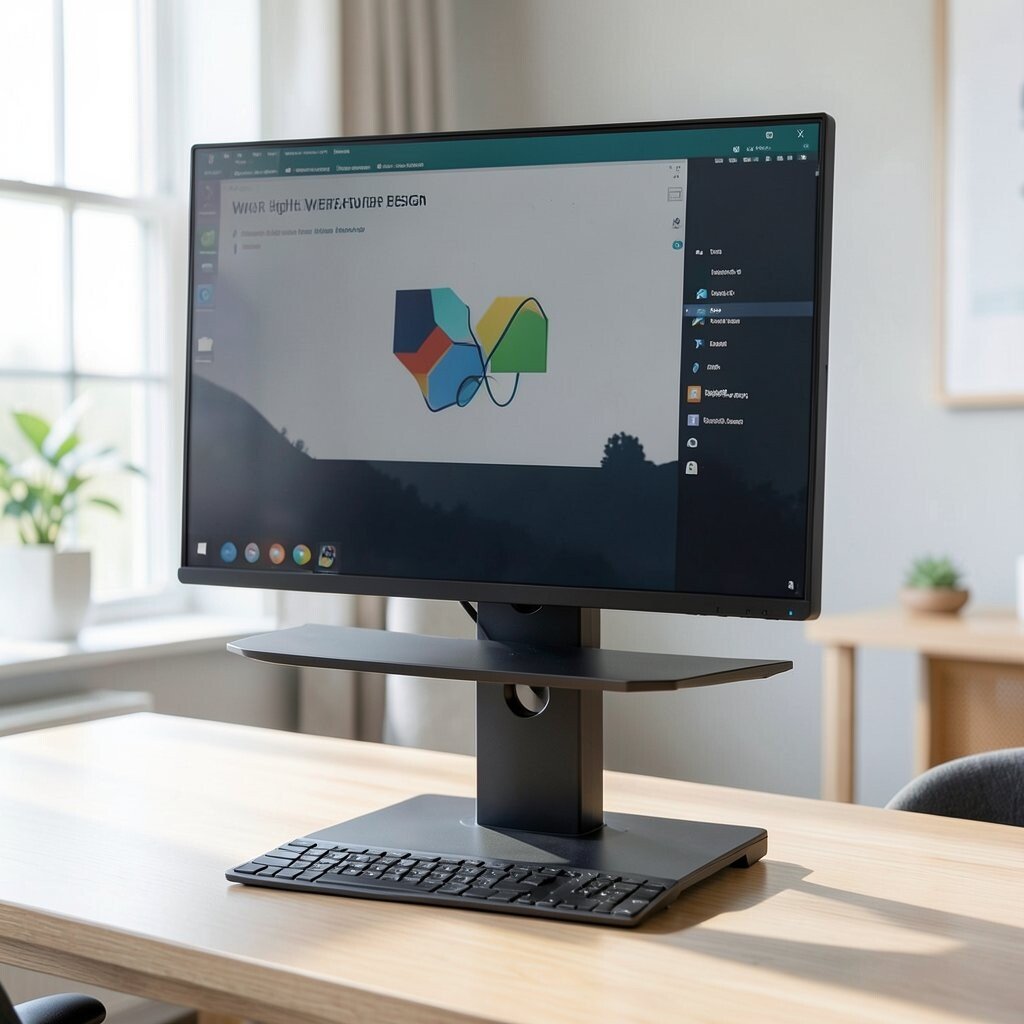
A screen that sits too low can make your shoulders creep up all day. When you lift and stabilize your monitor, your posture improves and your eyes can stay on track.
Try a simple stand, a riser made for your monitor size, or even a sturdy shelf riser to create a clean line. Keep the top of the screen near eye level, and place your laptop or second display so both feel aligned.
5. Standing-Safe Zones for Movement-Friendly Tech Work
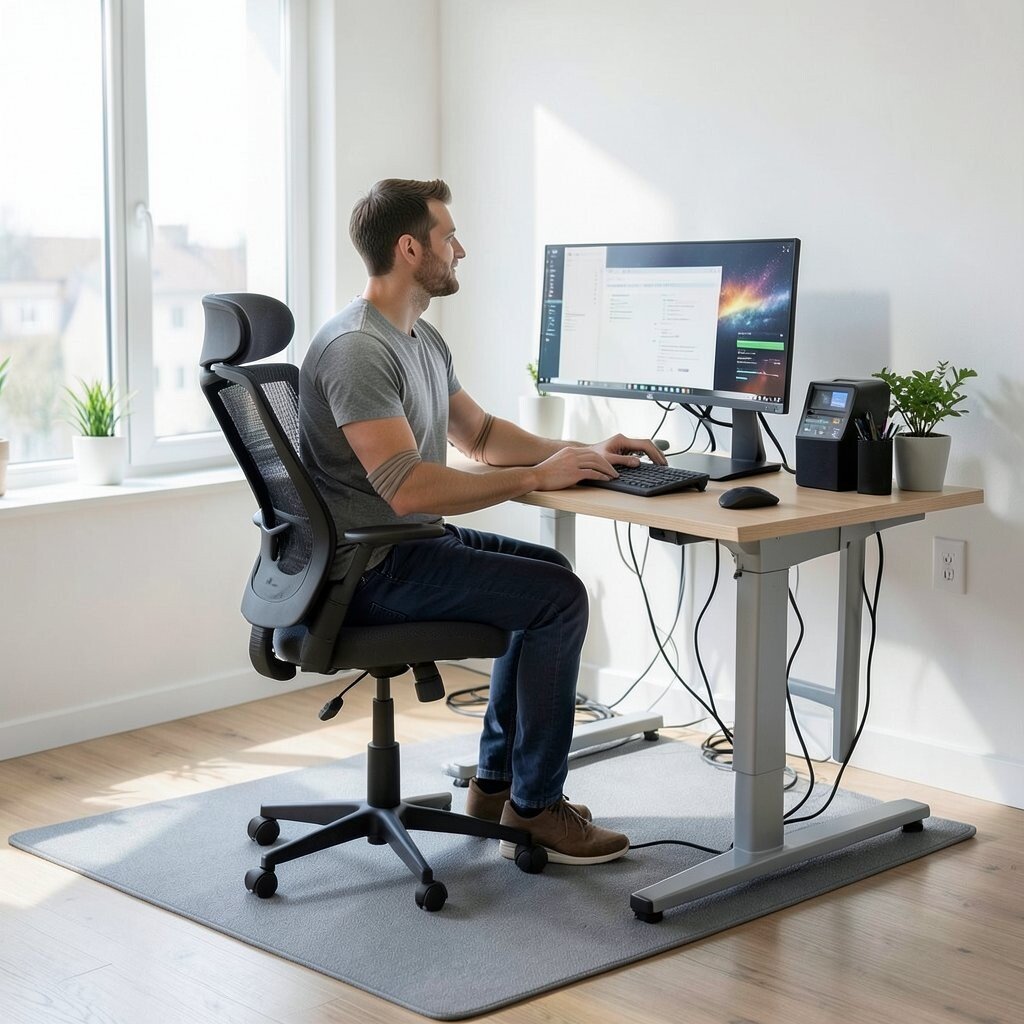
Sitting all day can make your focus slip, even if your keyboard feels comfortable. A workspace that supports movement helps you keep energy while staying productive.
Set aside one “standing-safe” spot with enough room for cables to reach without pulling. Use anti-slip mats, and position your chair so you can switch between sitting and standing without bumping your desk gear.
For personalization, match the mat color to your theme, like calm gray or a bold accent that you enjoy. If you already have a standing desk, adjust it so your elbows form a comfortable angle, not a stretched reach.
6. Keyboard, Mouse, and Accessories on a Tech-Friendly Mat
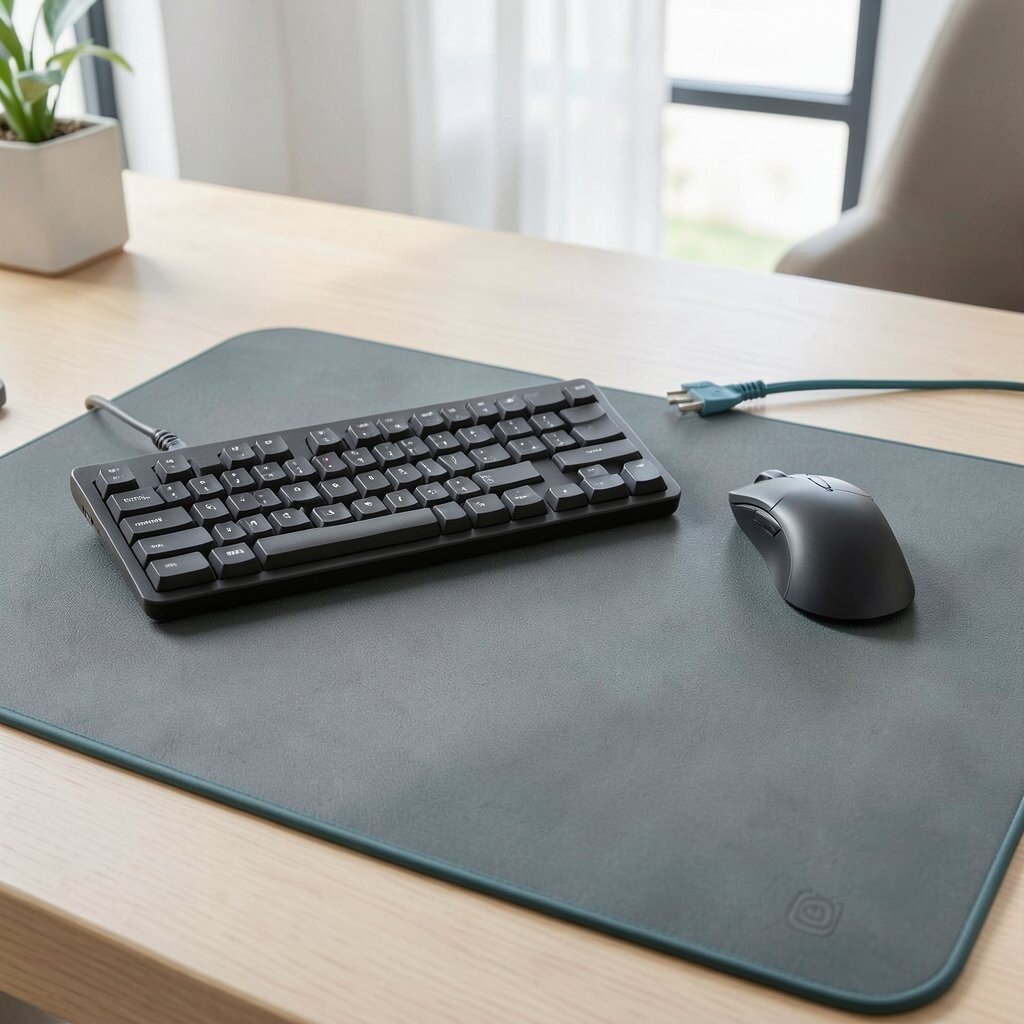
A dedicated desk mat can make your setup feel intentional and smoother to use. It also protects the surface from spills and keeps small gear from sliding around.
Choose a mat sized for both keyboard and mouse, ideally with a non-slip backing. If you use a trackball, tablet, or numeric keypad, leave enough space so it doesn’t fight for room.
To make it personal, pick a texture that feels nice when your hands rest, like soft fabric or a clean low-profile style. If you prefer a minimalist look, go for a single color and pair it with matching cable ties for a consistent vibe.
7. Smart Storage for Cables, Spares, and Charging Bricks
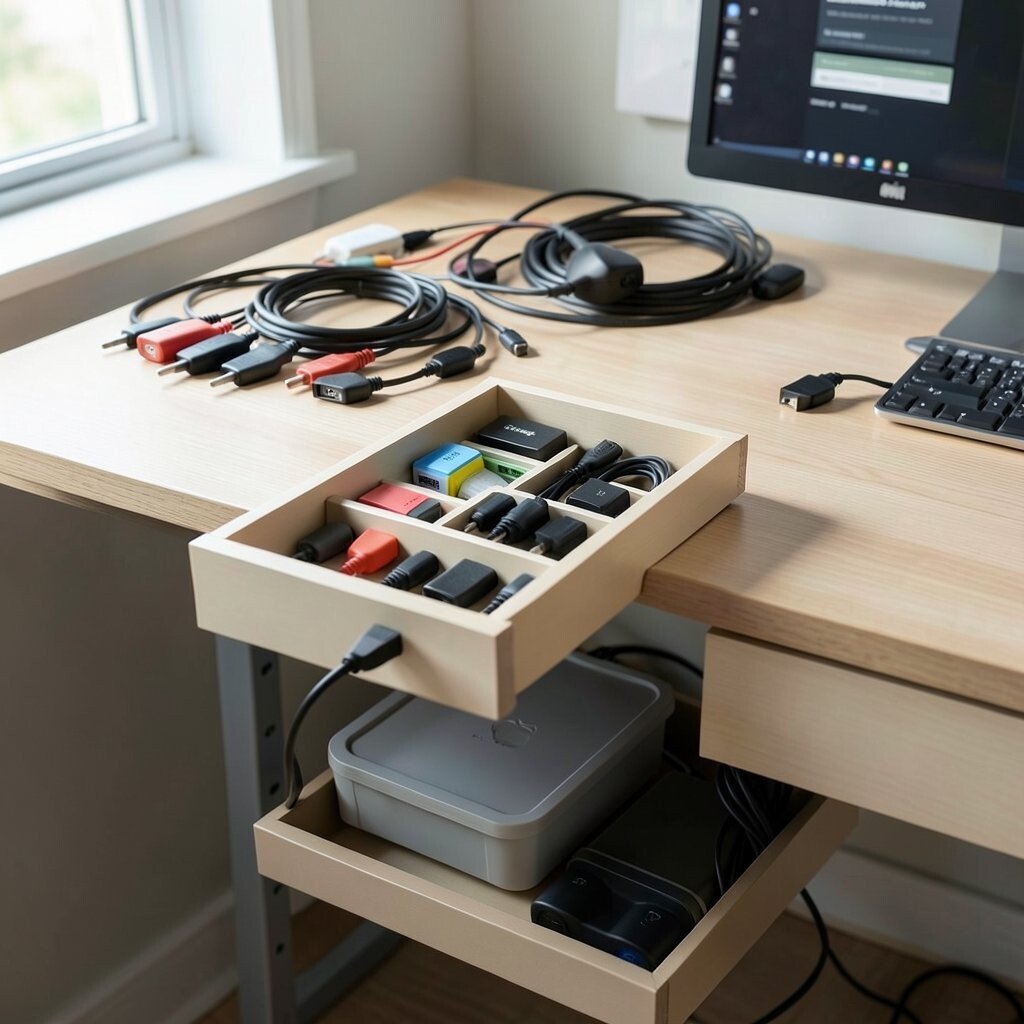
Loose chargers and spare cords can pile up fast, and the mess grows quietly. With smart storage, you can keep essentials nearby while still hiding clutter.
Try a drawer organizer for charging bricks and a small compartment for adapters. Place a compact box or lidded tray under the desk so power supplies can live out of sight but still be easy to grab.
Labeling helps a lot, but keep it subtle by using small strips or colored bands. A budget-friendly approach is repurposing containers, then adding a tidy insert so everything fits neatly.
Right now, many people are leaning into “closed storage” because it keeps desk surfaces calm even when tech changes often.
8. Wall-Mounted Device Charging and Display Stations
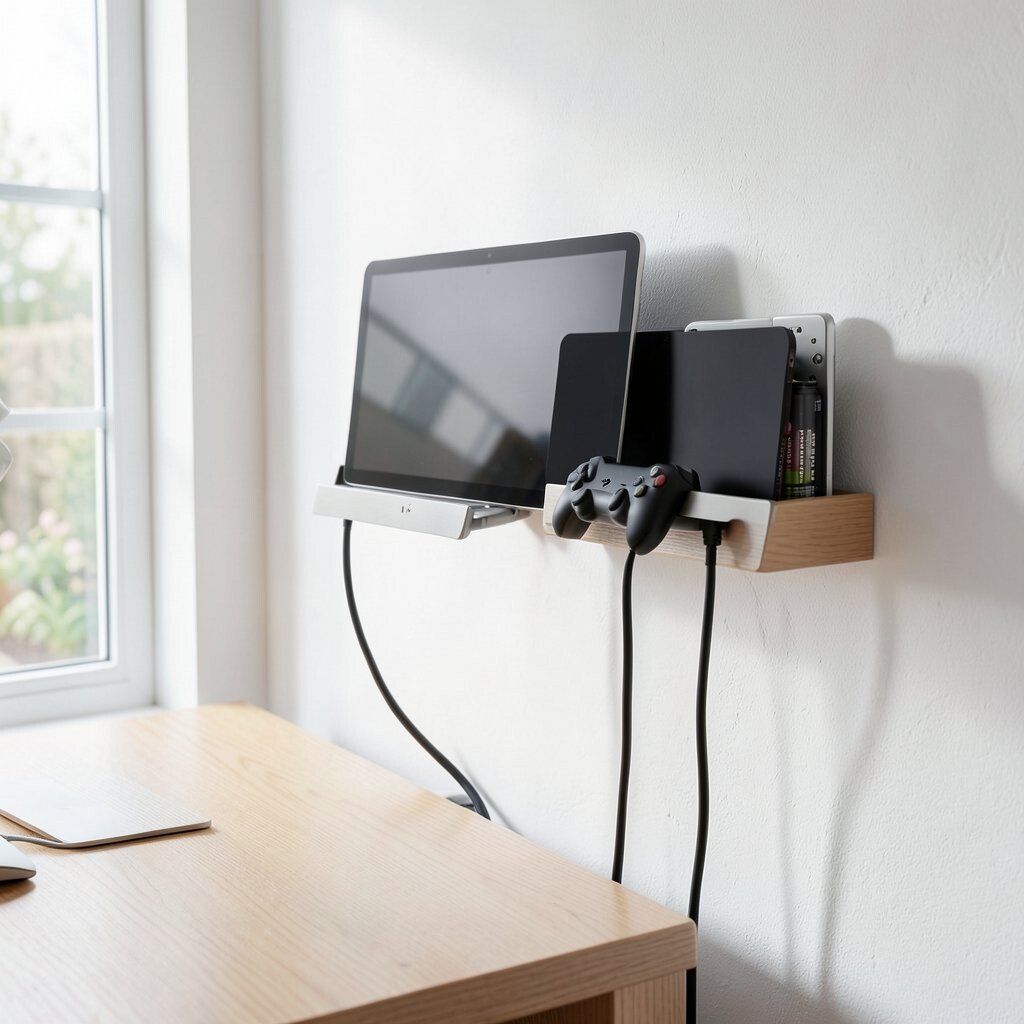
If your devices live in different corners, your brain has to “hunt” for them. A wall charging station creates a consistent home base for your gear.
Mount a small shelf or vertical dock near your desk to hold tablets, controllers, or extra batteries. Use a mounting system that keeps cords short and angles that avoid strain when you plug in.
For personalization, choose a color theme that matches your room, like wood, white, or brushed metal. This idea can cost less than you expect if you use a sturdy wall bracket and a simple charging dock.
9. Temperature-Control Comfort for Smooth Long Sessions
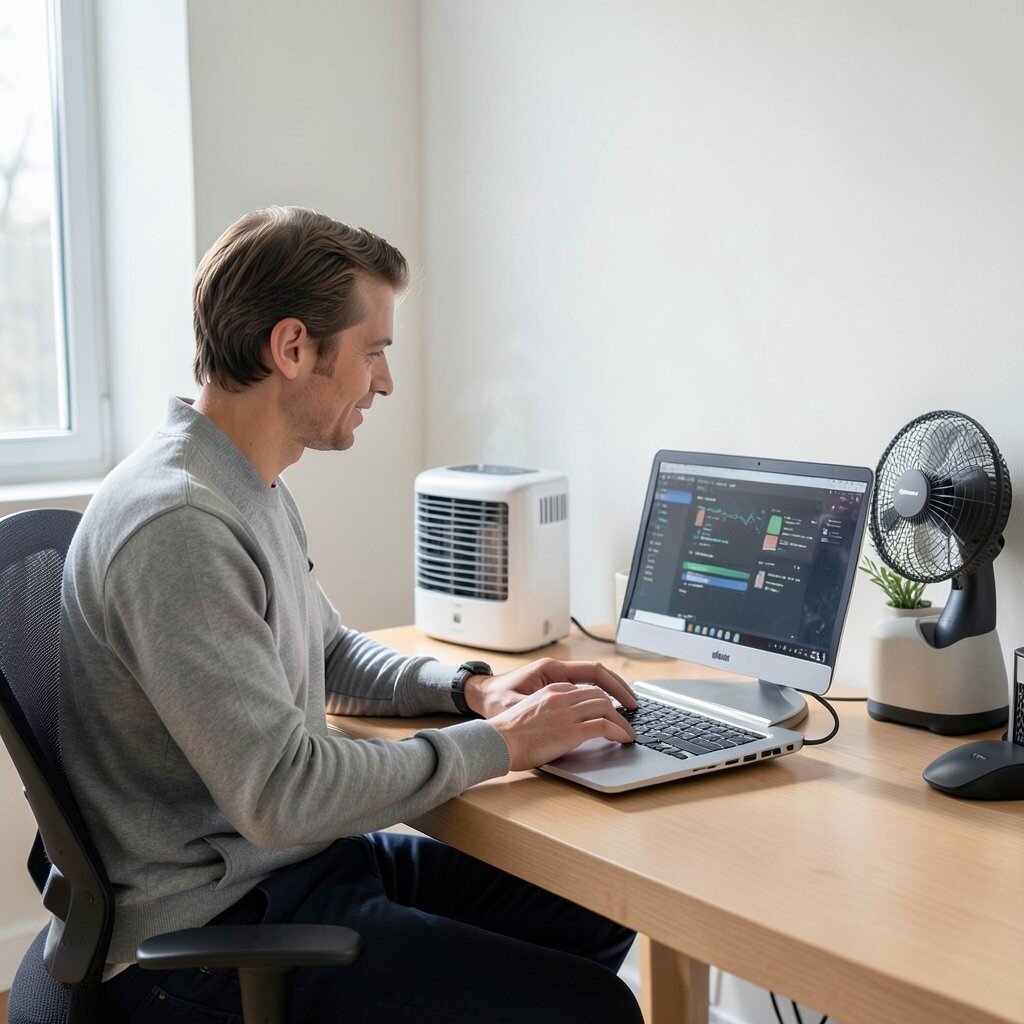
Tech runs best when your body feels comfortable, too. Heat from a laptop or a stuffy room can make typing feel harder and focus feel shorter.
Give your setup airflow by keeping a small gap behind the laptop area and ensuring vents aren’t blocked. Add a small fan with quiet settings, or if your space allows, position a portable heater for winter and a cooling solution for summer.
To personalize, choose a fan that looks good and doesn’t dominate the room. It can be a small investment that pays off because you stay comfortable while your devices run efficiently.
Many current setups also include humidity-conscious habits, since dry air can make screens and peripherals feel less pleasant over time.
10. Screen Clarity With Anti-Glare and Privacy Options
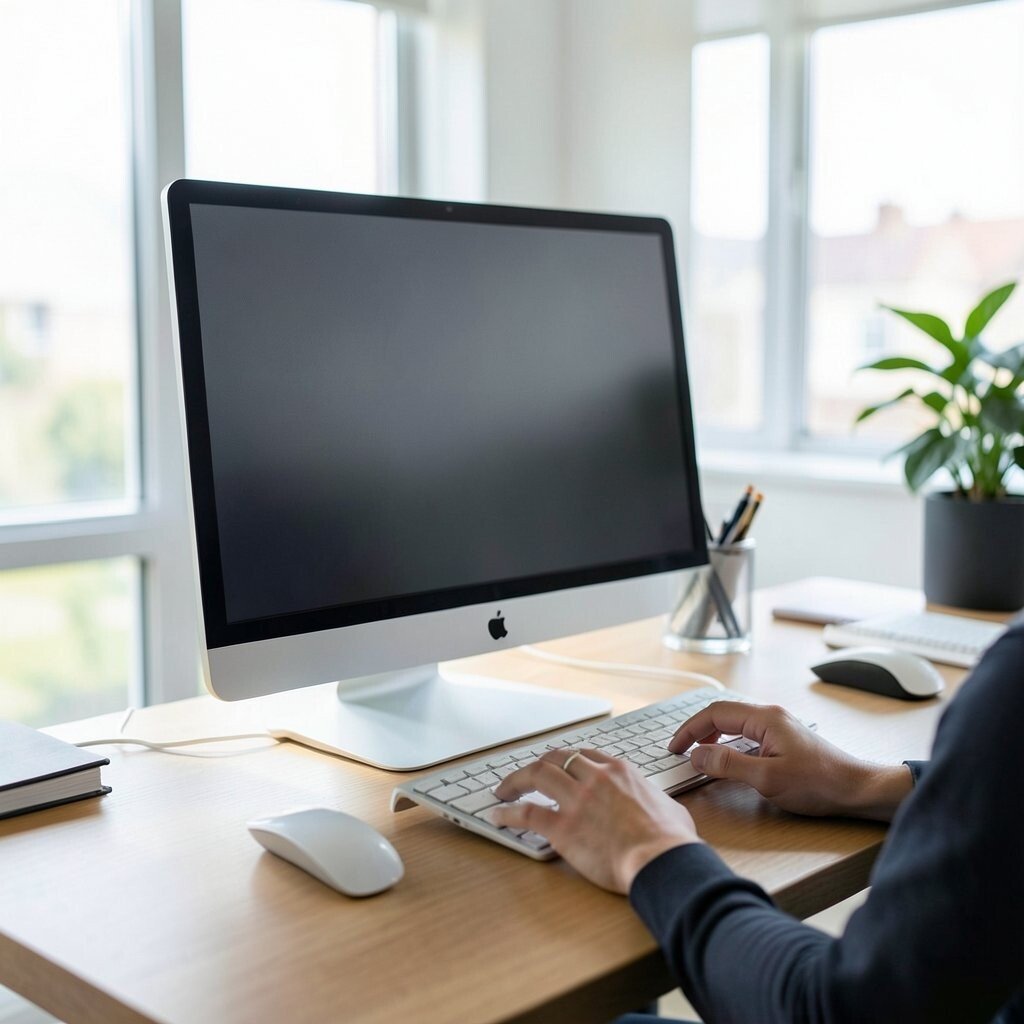
Glare makes your screen harder to read and can make you squint without realizing it. With anti-glare protection, your display stays crisp and calmer to look at.
Consider an anti-glare film for monitors, or choose a matte screen cover for a tablet. If you work in shared spaces, a privacy filter can add a sense of control while you review messages or documents.
11. Audio Setup Designed for Clear, Not Loud, Focus
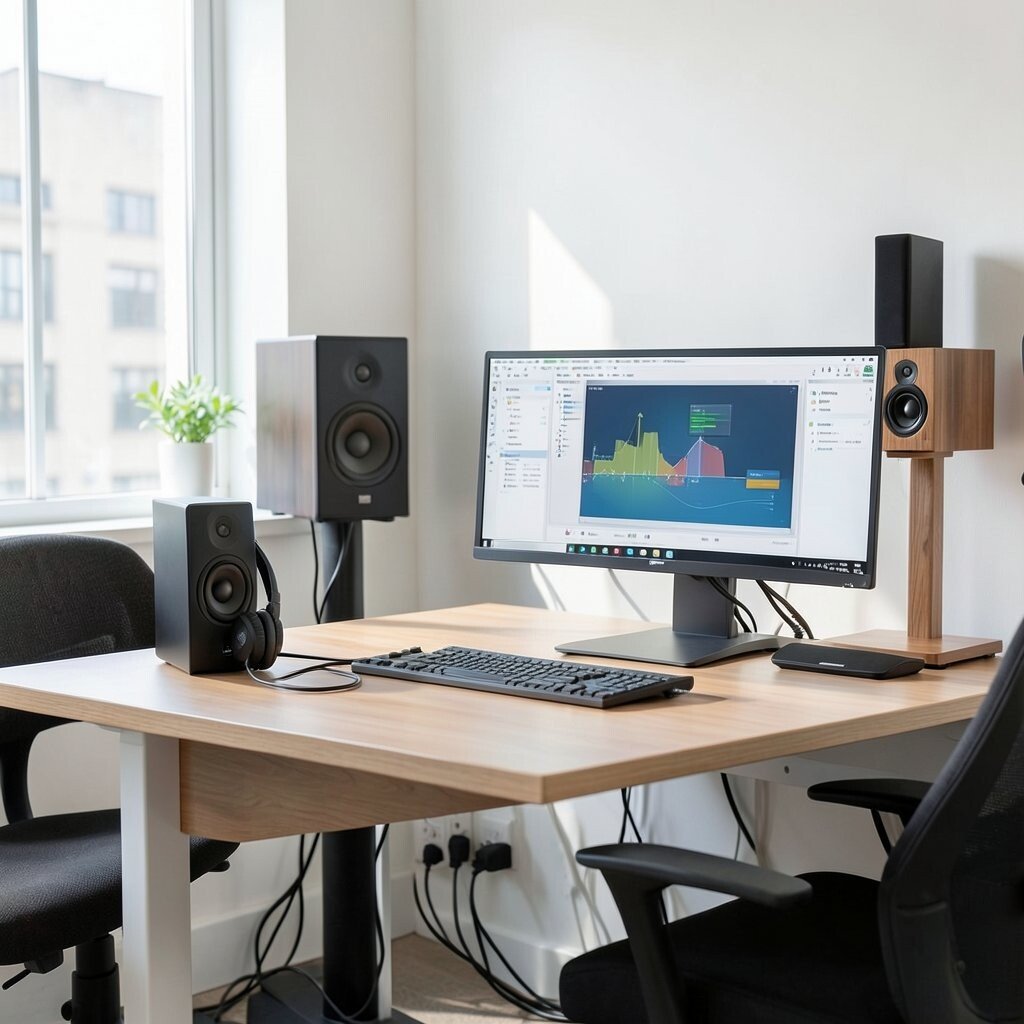
Good sound can make meetings smoother and music more enjoyable. But messy speaker placement can turn crisp audio into harsh noise.
Place speakers or a small soundbar at ear height and angle them toward your listening position. Use cable routing to keep audio lines separate from power lines, which helps reduce interference in many setups.
For personalization, pick speakers that match your desk style, like compact black units or warm wood finishes. A cost-friendly trick is using a simple desktop stand and then upgrading headphones later if you want better detail.
12. Built-In Whiteboard or Sticky-Note Wall for Tech Planning
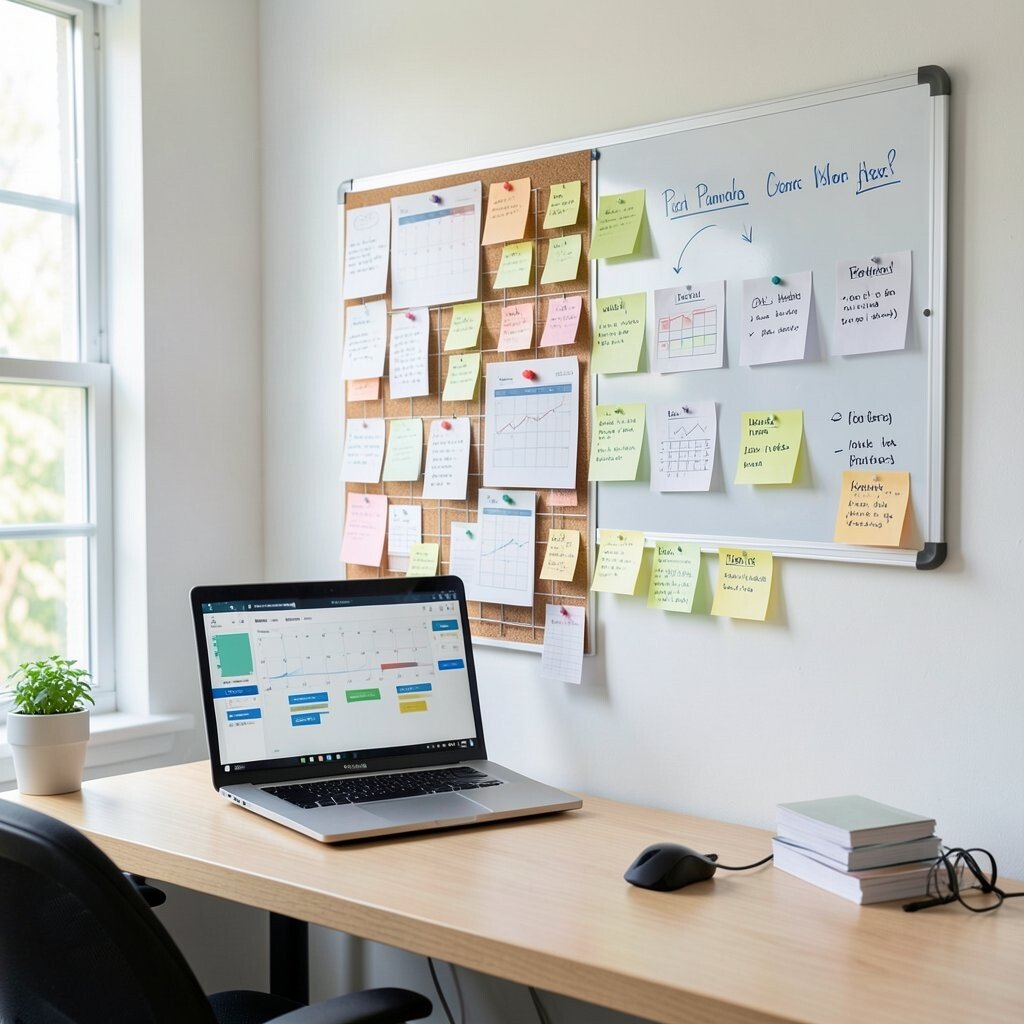
Even with calendars and task apps, a visible space helps your brain plan faster. A tech-friendly wall adds a physical layer to your digital workflow.
Try a small magnetic whiteboard, a cork strip, or a grid wall where you can pin printed notes, reminders, and labels for devices. Keep it near your desk so you can check ideas without opening multiple apps.
Personalize it with categories that fit your real life, like work deadlines, content ideas, or home tasks. This trend is popular because it combines tactile planning with digital tools, letting you move from notes to documents quickly.
13. Ergonomic Seating With Tech-Ready Cable Clearance
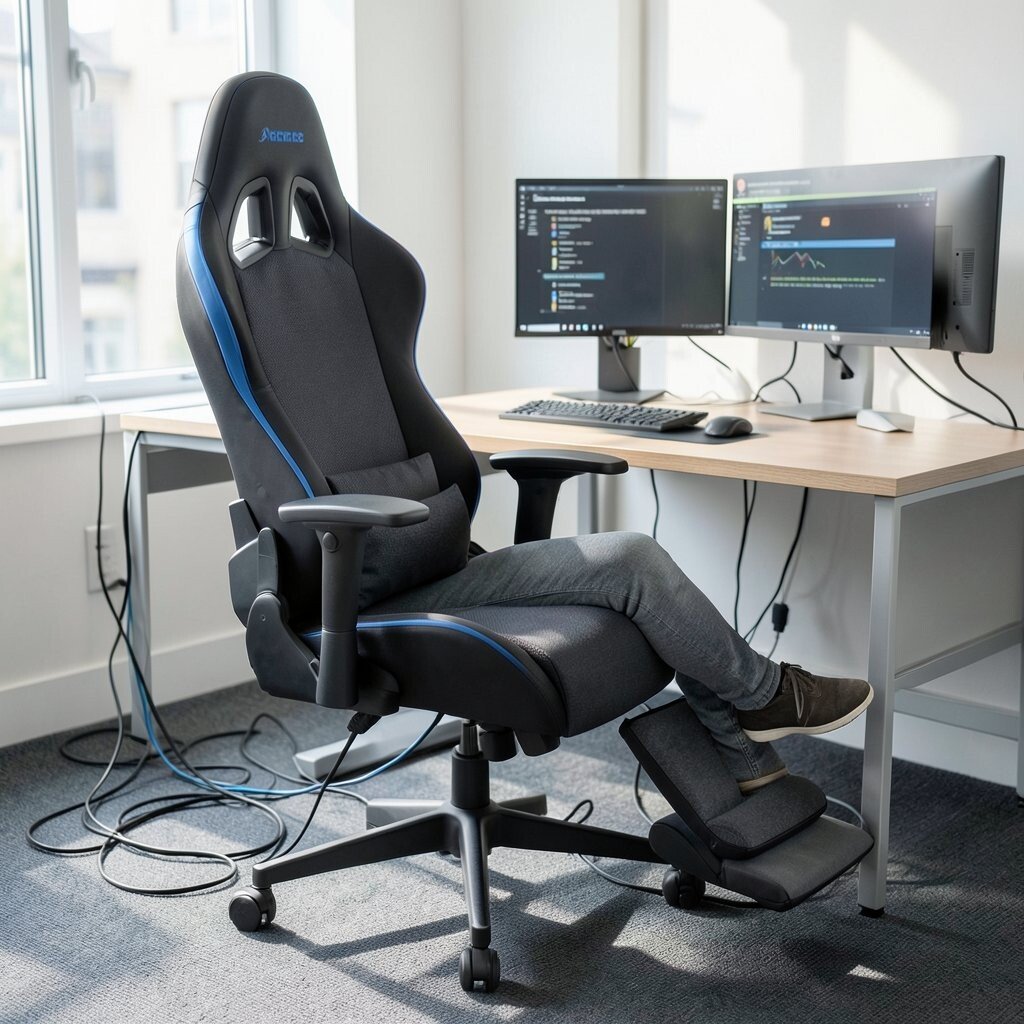
Comfort is tech too, because pain slows everything down. A good chair supports your posture, and it also needs space for cables and foot movement.
Choose a chair with adjustable height and arm support, then check that your cable paths don’t block your legs when you move. If you have a gaming chair or an ergonomic model, route power under the desk so you don’t pull cords when you lean back.
To personalize, add a small seat cushion that matches your preferred firmness and use a footrest if your legs need support. While it can cost more than other upgrades, it often becomes the foundation of your entire setup.
14. Minimalist Desk Surfaces That Let Your Tech Breathe
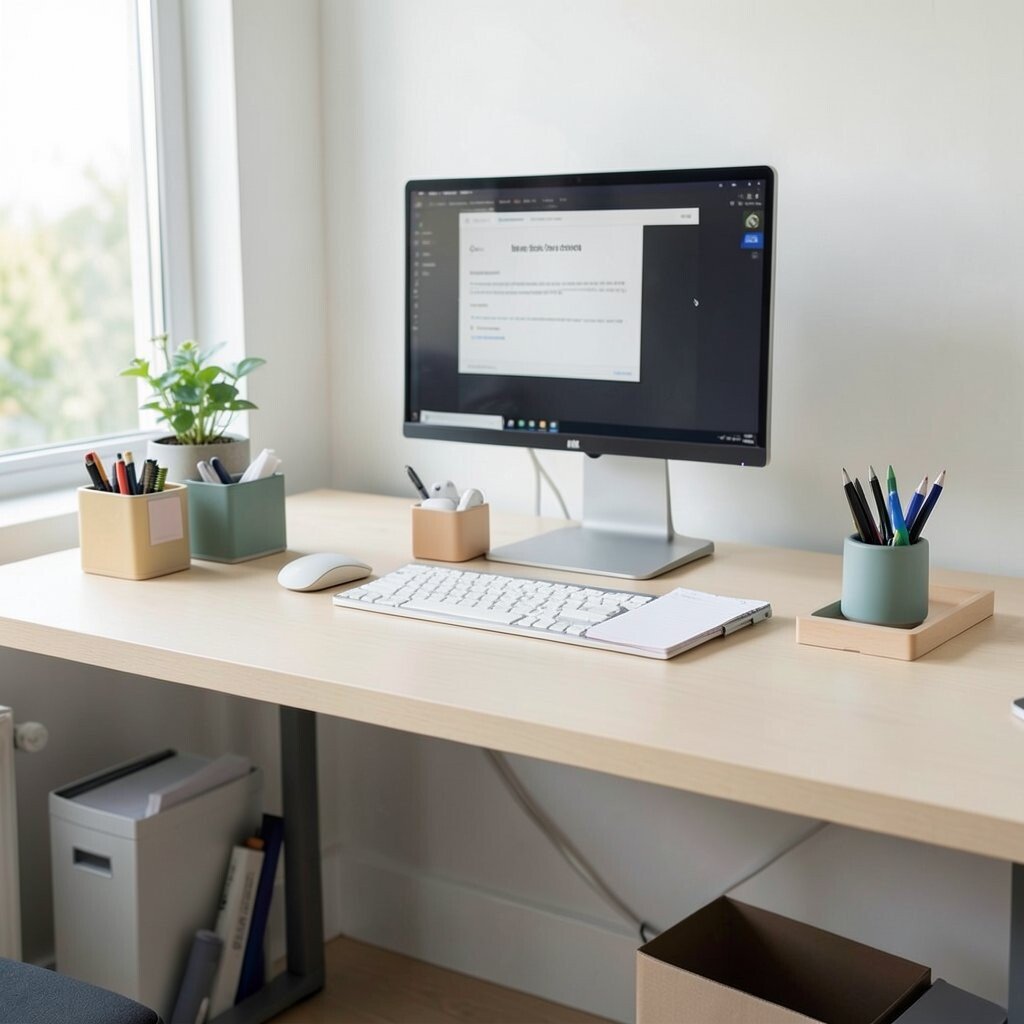
A cluttered desk makes every gadget feel stressful. A minimalist surface gives your devices space and helps you keep your workflow calm.
Keep only what you use most within arm’s reach, and store extras behind or under the desk. Use a simple tray for daily items like a pen, small notepad, or earbuds case so things don’t drift across the surface.
For personalization, choose a single accent color in your organizer set and repeat it in cable ties, labels, or a monitor cloth. This idea is flexible at any budget because decluttering is free and organizers can be added gradually.
Many modern desks now use “negative space” style layouts, where the emptier look is intentional, not accidental.
15. Color-Coded Systems for Devices and Documents
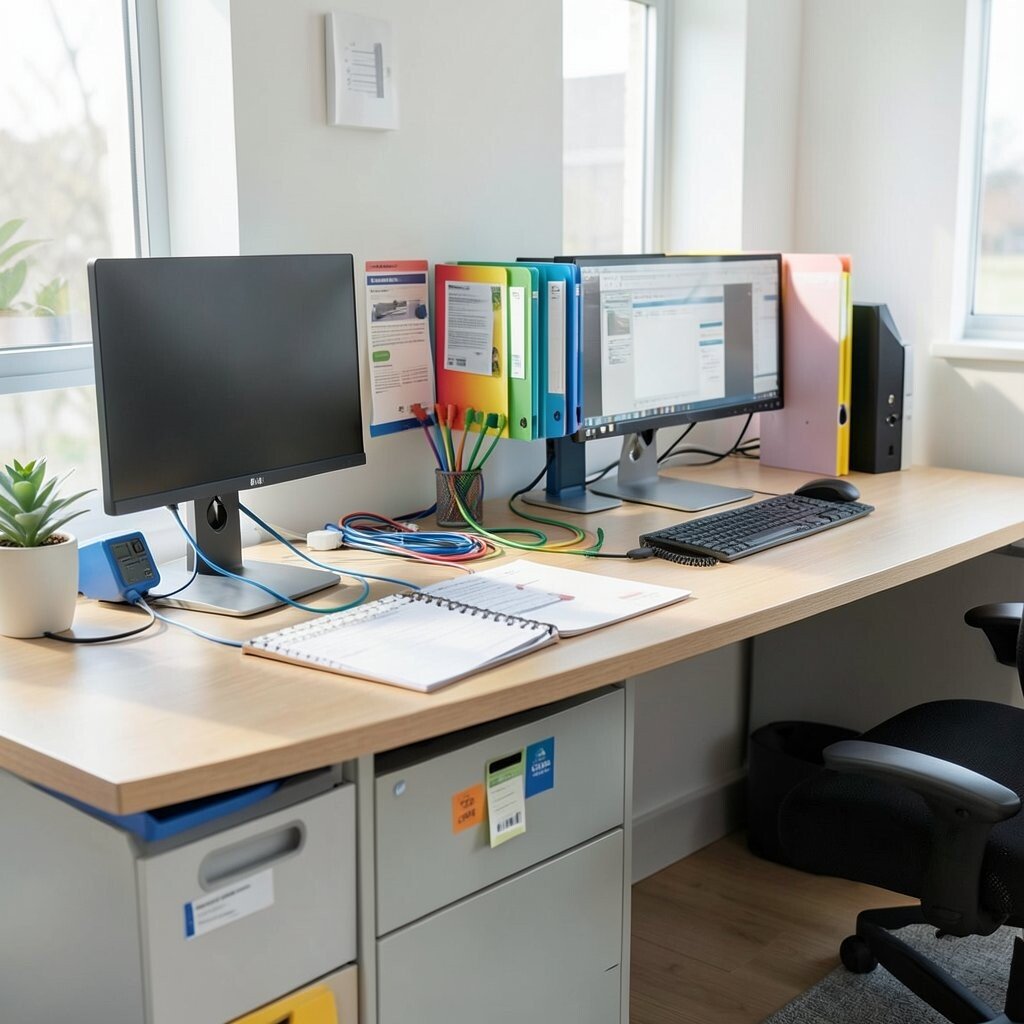
Your workspace can become self-explanatory when everything has a consistent visual rule. Color coding helps you grab the right cord, file, or accessory without thinking too hard.
Assign colors to device types, like blue for work gear and green for personal charging items. Use matching labels on cables, small stickers on drawers, or even folder color bands in your file system.
Personalize it to match your personality, whether you love bright accents or prefer soft muted tones. This approach is low cost because it mainly uses labels and simple organization tools.
16. Smart Sensors and Automations for a Smoother Routine
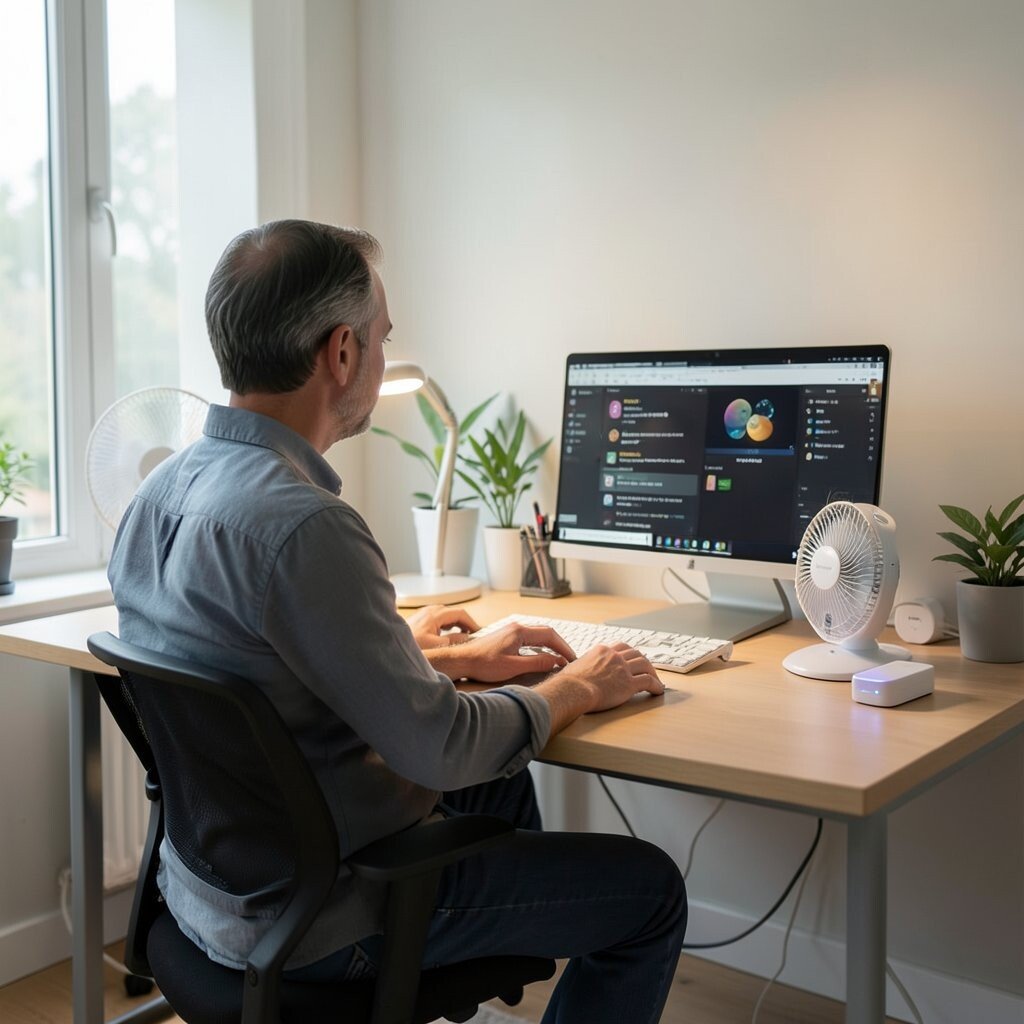
When your workspace quietly responds to you, your routine feels effortless. Smart sensors can handle lights, screens, or reminders when you sit down or step away.
Try motion-activated lighting or a smart plug for a fan, desk lamp, or charging area. Set gentle schedules so your workspace wakes up in the morning and powers down at night without you remembering every step.
To personalize, choose automation scenes that match how you work, like “focus mode” with dim lighting or “evening mode” with warmer tones. Many people start with one smart plug or one light system because it’s affordable and easy to expand later.
Current trends often pair these sensors with simple voice control, so you can manage your environment hands-free during busy moments.
17. Device-Friendly Seating Accessories for Hands-Free Comfort
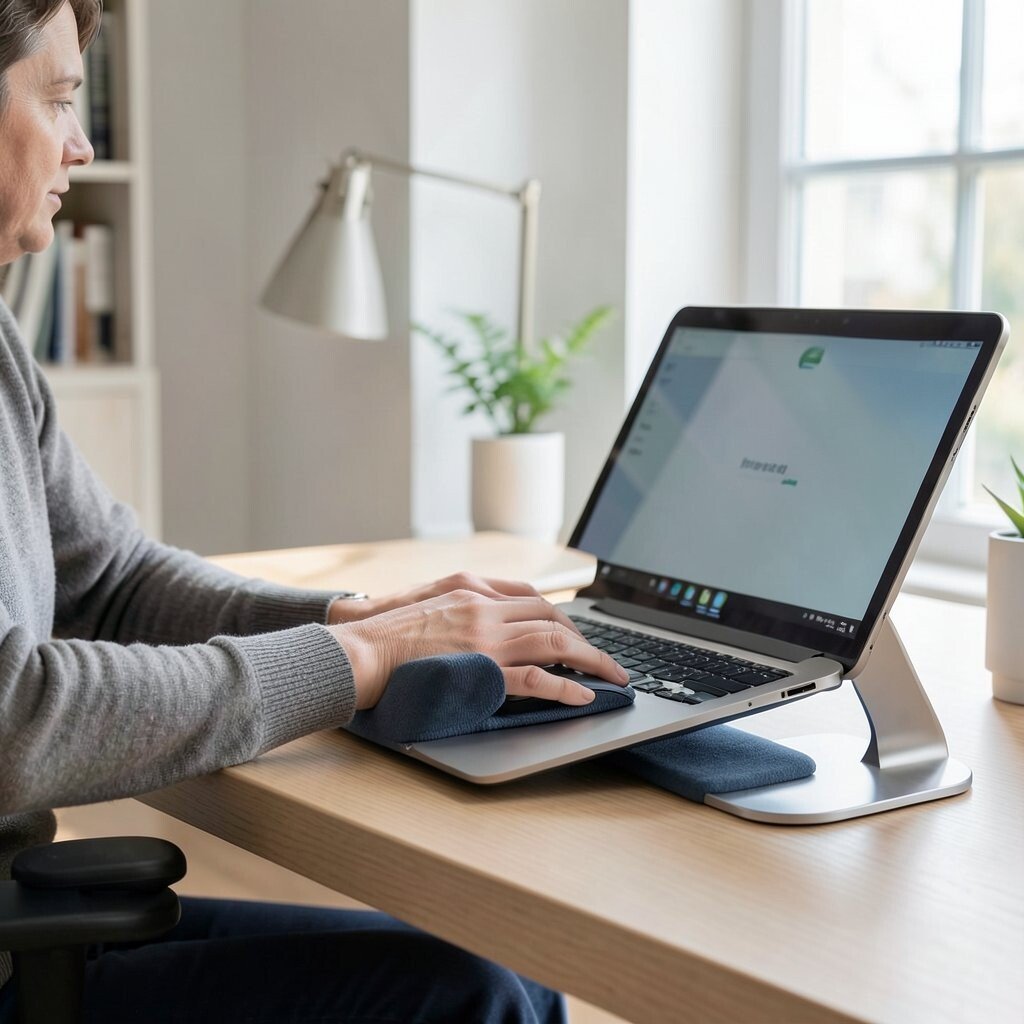
Small accessories can make a big difference when you use tech for hours. When your hands and eyes feel supported, you type faster and feel calmer.
Consider an ergonomic wrist rest, a palm support for your mouse style, or a stand that improves tablet viewing angle. If you use a laptop, a lap desk or portable monitor stand can help you avoid neck strain while working from different spots.
To personalize, choose materials that feel good to touch, like soft fabric covers for wrist support or a sleek metal stand that matches your desk. This upgrade can fit almost any budget because many accessories cost less than a new device and deliver steady comfort improvements.
When you design for comfort, your tech experience becomes smoother and your workspace feels like it was made for you.